
A good award voting page does four things in the first few seconds: it shows who is nominated, makes the vote button unmistakable, tells voters the result will be fair, and works with one thumb on a phone. Everything else is polish. This guide walks through the layout, copy, verification and accessibility choices that matter, with examples for photo and video contests too.
Key takeaways
- Lead with images. Nominee photos should dominate each card, with a short name, category and one clear vote button.
- Break long ballots into categories or steps. Options below the fold get missed, and research on long ballots links that to voting errors.
- Pick the lightest voter verification that still protects your results, because every extra step costs you some voters.
- Design for phones first, then check keyboard and screen-reader use. Accessibility is part of the design, not a final audit.
- Show your rules, deadline and live results on the page. Transparency is what makes fans trust a public vote.
Table of Contents
- Start with the voter’s one job
- Make nominees the centerpiece
- Lay out the ballot so nothing gets missed
- Write button labels and microcopy that cannot be misread
- Decide how voters prove they are real
- Design for the phone first
- Build in accessibility from the start
- Photo and video contests: extra design choices
- Build trust with the details around the vote
- Launch the page with Izivote
- FAQ
- Sources
Start with the voter’s one job
A voter arrives with a single goal: pick a favorite and be done. Most voting pages fail because they ask the voter to do other things first, such as read a long rules block, create an account, or decode a cluttered grid.
Write down the shortest path before you open a design tool: land, see nominees, choose, confirm, see a thank-you with the next action (share, vote in another category, view results). Each screen you add to that path needs a reason.
A simple hierarchy works for nearly every award:
- Header: award name, a one-line promise (“Vote for your favorite local business”) and the closing date.
- Nominee area: the visual core of the page.
- Vote action: a labeled button on every nominee.
- Trust strip: how voting works, who can vote, how many votes per person.
- Footer details: full rules, sponsors, contact.
Make nominees the centerpiece
People identify nominees by faces, covers and thumbnails before they read a word. A usability case study for an awards ballot built for a major magazine group reports that users prioritize images over text, and it uses a roughly 7:3 image-to-text proportion on its nominee cards. Treat that as a sensible starting point, not a law.
A strong nominee card has:
- A large, consistently cropped image (pick one ratio, such as 4:3 or square, and crop every nominee to it).
- The nominee’s name in readable type, plus the category if the page mixes several.
- One line of context: a project title, a hometown, a tagline.
- A button that says what it does, such as “Vote for Maria Lopez”.
- An optional “View profile” link for voters who want more.
Keep the profile deeper than the card. The card is for deciding, the profile is for the nominee’s story, video or links. With Izivote’s nominee photos and profiles, each nominee gets that visual page without you building it by hand.
Let the page reflect the work being honored
The best-looking voting pages borrow from the nominees themselves. The team behind the Awwwards annual voting site built the voting background from patterns pulled out of the nominees’ own work, so the act of voting felt like part of the celebration. You can do a lighter version: use a color from the winning-year poster, crop nominee photos into a branded frame, or echo the trophy shape in your buttons. If your awards honor design or school achievement, the same idea applies, and this guide to senior awards ideas shows how visual presentation can carry an awards program.
Lay out the ballot so nothing gets missed
Long ballots cause mistakes. A Rice University thesis on long ballot content across paper, electronic and mobile systems found that voters are more likely to err on candidates who sit below the fold, where they cannot be seen without scrolling.
Your awards are lower stakes than an election, but the lesson holds: a voter who misses a nominee cannot vote for them, and the nominee’s fans will notice.
Choose a structure by size
| Event size | Best structure | Why |
|---|---|---|
| One category, under 12 nominees | Single grid | Everyone is visible at once |
| One category, 12+ nominees | Grid with pagination or a search box | Keeps cards large enough to see |
| 3 to 8 categories | Category tabs or a card per category | Voter finishes one decision at a time |
| 9+ categories | Step-by-step ballot with a progress bar | Shows how much is left and reduces abandonment |
If you randomize nominee order for each visitor, say so in the rules. It removes the advantage of being listed first, which is a common complaint in fan awards.
Show progress and live results with care
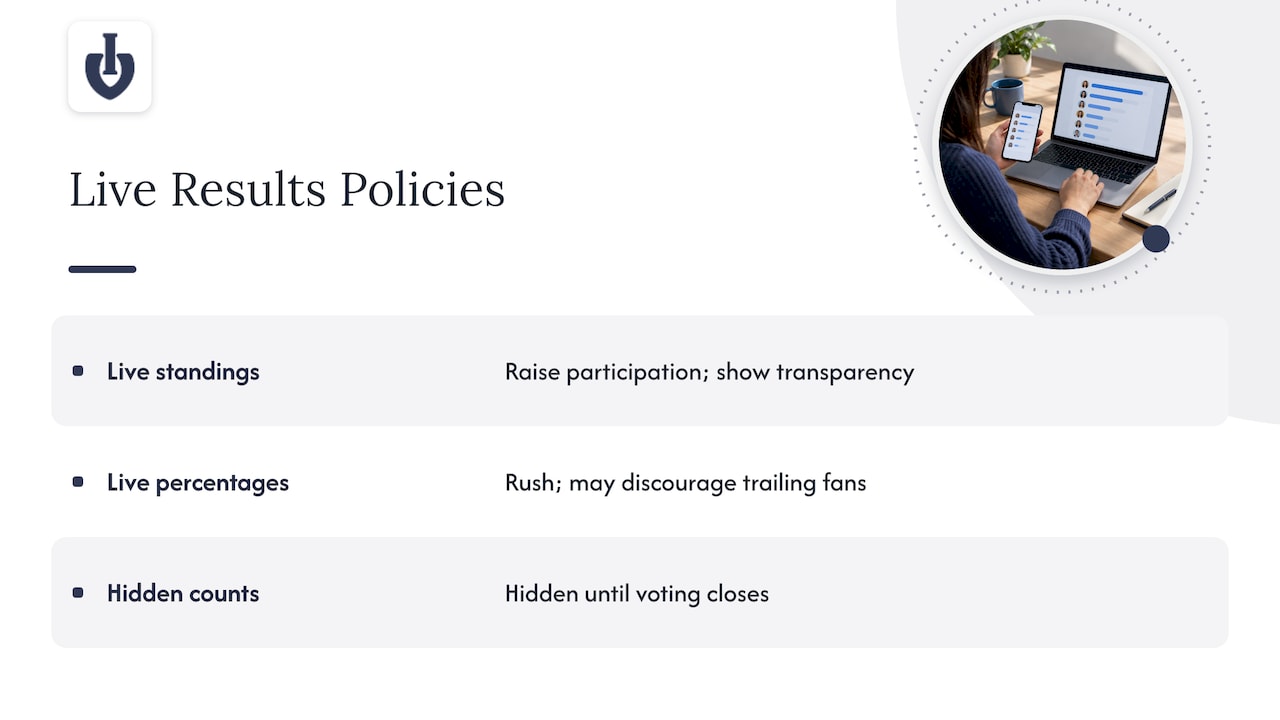
Progress indicators tell voters how many categories remain. Live standings can raise participation, since voters like seeing how their pick compares with the crowd. The Vanity Fair ballot case study above lets users compare their picks with other voters and with final winners, which is a good model for engagement after the vote.
There is a design decision here, though. Live percentages encourage a final-hours rush and can discourage fans of trailing nominees. Many organizers show live results during the contest for transparency, others hide counts until the close. Decide on purpose, and state it on the page. Izivote offers real-time public results and organizer analytics so you can follow votes as they arrive.
Write button labels and microcopy that cannot be misread
Icons alone are risky. A project from the Junction 2024 digital democracy challenge notes that a thumbs-up can be read as agreement with a statement rather than a choice. On an awards page, a heart or thumb on its own might mean “favorite”, “like” or “vote”.
Use words:
- Good: “Vote”, “Vote for this nominee”, “Confirm your vote”.
- Avoid: a bare heart, a star, “Support”, or “Like”.
Add short helper text near the button: “You can vote once per category” or “Each vote costs $1”. After the vote, confirm exactly what happened: “Your vote for Maria Lopez in Best Photo was recorded.”
Decide how voters prove they are real
Verification is the main trade-off in voting page design. Common models range from anonymous voting, to identity checks by phone or email, to login through an account. Requiring an email or phone number helps enforce one vote per person, but it adds friction and can lose voters when a code is slow to arrive. That is the general pattern described in one contest tool’s documentation on voter verification.
A practical way to choose:
- Low stakes, big reach (a school spirit poll): open voting with rate limits may be enough.
- Prizes or sponsor money attached: require email or phone verification.
- Closed community (members, employees): require login.
- Fundraising: use paid votes, where payment itself is a barrier to ballot stuffing, and be open about the price per vote.
Whatever you pick, explain it in one sentence at the top of the ballot: “Verify your email to vote once per category.” Voters accept friction they understand. For deeper background on spotting manipulation, this campaign fraud prevention playbook covers patterns that apply to any online campaign. Izivote supports open, paid, login and identity-based modes, explained in its help article on voting types and voter identity.
Design for the phone first
Most fans will vote from a link in a social post or text, so the phone is your main canvas. Practical rules:
- Use a single-column flow. Cards stack, buttons span the width.
- Keep the vote button within thumb reach, ideally sticky at the bottom after a nominee is chosen.
- Make tap targets generous. The WCAG 2.2 standard requires targets of at least 24 by 24 CSS pixels at Level AA and recommends 44 by 44 at the stricter AAA level. For a vote button, aim for 44 or more.
- Compress images so a grid of 30 nominees loads quickly on mobile data.
- If you collect an email or phone number, ask for nothing else. Name, address and birthday do not belong on a fan vote.
- Show errors where they happen and phrase them as fixes: “That code has expired. Send a new one.”
Test on a real mid-range phone over a weak connection. Many voting pages look great in a desktop preview and stall in a crowded venue.
Build in accessibility from the start
An award page that some fans cannot use is a bad page, and a fair vote should be open to everyone. The usual benchmark is WCAG at Level AA, and the W3C’s WCAG 2.2 specification is the source to work from.
The checks that matter most on a voting page:
- Keyboard use: every nominee, button and form field reachable with the Tab key in a logical order.
- Visible focus: a clear outline showing where the keyboard is.
- Contrast: body text at 4.5:1 against its background, including text over nominee photos. Put text on a solid or darkened panel rather than directly on an image.
- Alt text: every nominee image described by name, not “photo1.jpg”.
- Error handling: when a vote fails, send focus to the error message or first problem field, not back to the submit button, so screen-reader users learn something went wrong. This is covered in an accessible form design guide.
Automated scanners catch only part of the problems, so also tab through the page yourself and try it with a screen reader. For a broader look at why this matters beyond compliance, see this overview of web accessibility and its SEO impact.
Photo and video contests: extra design choices
Contests built around photos or video need a few adjustments beyond a standard award ballot.
Photo contests
- Use a uniform crop in the gallery, with a lightbox to view the full image.
- Show the entrant’s name and a title, not only the image.
- Let voters vote from the gallery without opening each photo, but keep the vote button visible inside the lightbox as well.
- Decide whether to show vote counts. Photographers with large followings can dominate an open count, so some organizers pair public voting with a judged round.
Video contests
- Use a thumbnail that is chosen on purpose, not an auto-captured frame.
- Never autoplay with sound. Let voters press play.
- Give each entry a short description and length, such as “1:42”, so voters know the commitment.
- Keep the vote button beside the player so a viewer can act the moment the video ends.
Setup checklist for either format
- Define categories and the rules for who can enter, including whether entrants may nominate themselves.
- Collect entries with a name, title and image or video link.
- Choose a verification mode.
- Set opening and closing times so voting stops automatically.
- Embed the voting page on your own site or share its link.
- Preview on a phone, then test one vote end to end.
The complete guide to running award show voting goes deeper on timeline and promotion.
Build trust with the details around the vote
Fans accept a result when the process looks honest. Put these on the page, not buried in a PDF:
- The closing date and time with a time zone.
- The number of votes allowed per person and per category.
- How duplicate or suspicious votes are handled.
- How winners are chosen, including any judged component.
- Who runs the award and how to contact them.
- For paid votes, the price per vote and where the money goes.
If you raise funds, say so plainly. Fans are happy to pay for a cause they believe in when the terms are clear, and they get annoyed when they discover a fee at checkout.
Launch the page with Izivote
If you would rather not build a ballot from scratch, Izivote is a voting platform made for audience and people’s choice awards. You set up categories, add nominee photos and profiles, choose a voting mode, and share or embed the page on your site. Voting can close automatically, and a live dashboard shows results as they come in.
Pricing is published on the pricing page: a Free plan, Pro at $6 per month or $60 per year, and Premium at $14 per month or $140 per year. If you run paid voting, a platform fee of 10% per vote applies. You can create a vote for free and preview how your nominees look before you share anything.
FAQ
What should an award voting page include?
At minimum: the award name, a closing date, nominee cards with images, a labeled vote button, a short explanation of who can vote and how many times, and a confirmation after the vote. Add live results, sponsor logos and full rules if they fit your event.
How many nominees should I show per screen?
Show as many as can stay large enough to recognize on a phone, usually a single column of cards or a two-column grid. For bigger fields, split by category or paginate rather than building a long scroll, since options below the fold are easier to miss.
Should I require email or phone verification?
It depends on the stakes. Verification reduces duplicate votes but adds a step that some voters will not complete. For prize-backed awards it is usually worth it, while a casual community poll can often use lighter checks.
How do I make a photo or video contest page work on mobile?
Use uniform thumbnails, a single-column layout, compressed media and a vote button that stays visible next to each entry. Do not autoplay video with sound, and test the page on a real phone before launch.
Sources
- Web Content Accessibility Guidelines (WCAG) 2.2, W3C
- The Usability Implications of Long Ballot Content for Paper, Electronic, and Mobile Voting Systems
- Vanity Fair Ballot case study, Lily Boyce
- Annual Awwwards voting site, Tubik Studio
- Junction 2024 Sitra Challenge project, Claudio Lintunen
- Accessible form design guide, Fomr
- Photo voting contest documentation, SweepWidget
Leave a Reply